From sign-up to a schedule, one step at a time
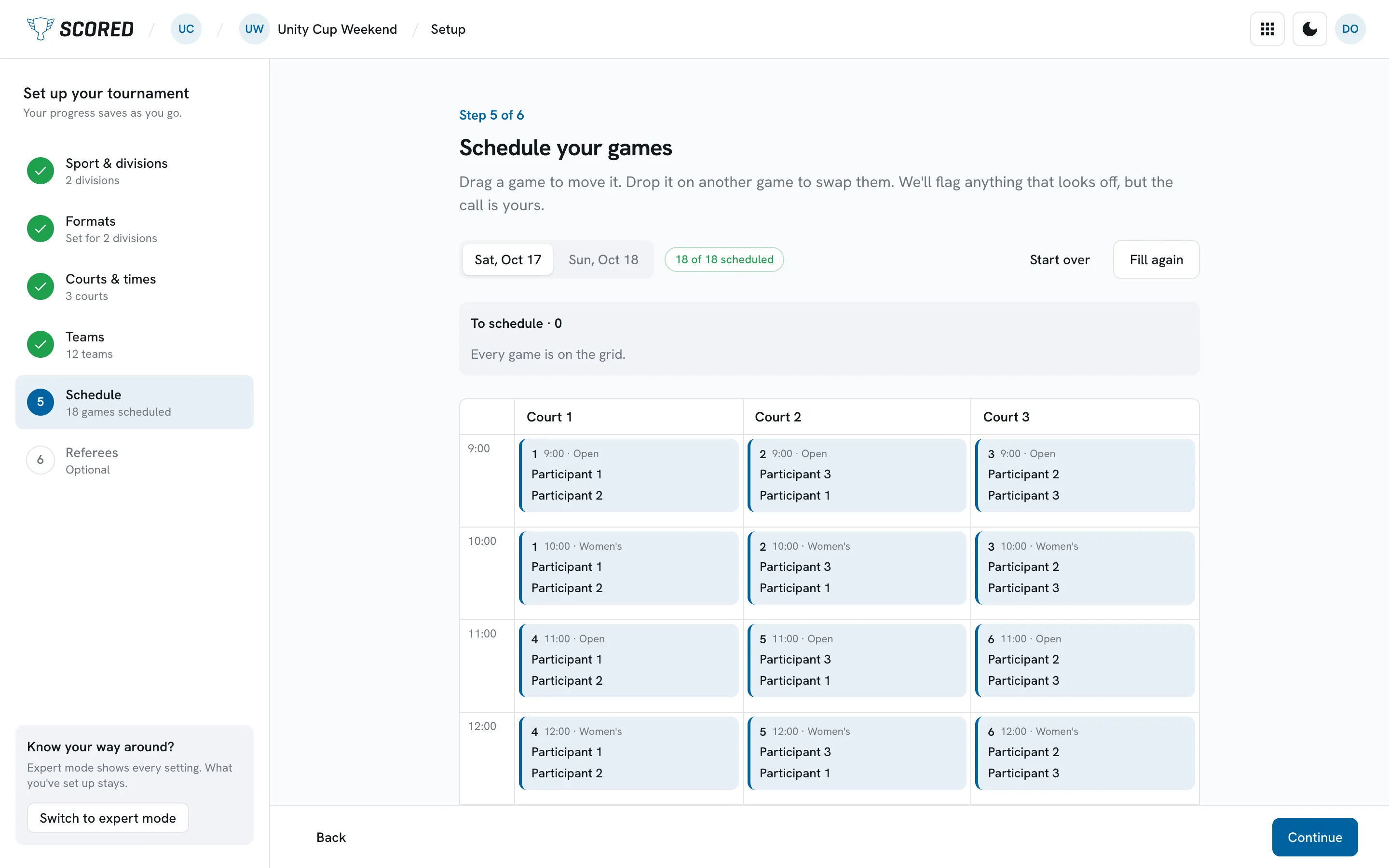
Since 3 October, a new Scored account starts with a choice: Guide me through it or I know my way around. With the guide, you name your organization and your first tournament, then set it up in six steps, one screen at a time.
- Sport and divisions. Pick a suggested sport or search for yours, then choose your divisions or add your own.
- Formats. Groups then knockout, groups only, or knockout only. You see how many matches your choice makes before you commit.
- Courts and times. Set your courts, your days and the opening hours. A capacity check tells you if your matches fit, and what to add if they don't.
- Teams. Type them in, one per line, or import a spreadsheet.
- Schedule. Scored fills the schedule for you, then you drag games to adjust.
- Referees. Invite referees (Small plan and up).
In the Schedule step, you choose whether divisions take turns on the courts or play side by side, and whether teams get a game off between matches. Fill the schedule then puts the games on courts and times. It places games, not referees. Until teams are placed in their groups, the games show “Participant 1” and “Participant 2” instead of team names. Drag a game to move it, or drop it on another game to swap the two. Scored marks clashes as you go, and games that don't fit wait in a list that says why.
Teams, schedule and referees can wait. Skip them, and come back from the guide or from the Finish setting up card on your dashboard.
Already running tournaments on Scored? Your account and your tournaments stay in expert mode and work as before. To use the guide for your next tournament, set your account to easy in your account settings.
Easy and expert settings
Each tournament now has two settings views. Easy shows the settings most tournaments need. Expert shows the rest too, such as team management. Your account has a default for new tournaments, in your account settings.
To see everything, choose Show all settings, which switches the tournament to expert mode. You can also switch modes on the tournament's General settings page, or from the setup guide, which asks you first. Switching leaves your settings as they are, and hiding a setting doesn't reset it.
Find your sport
In the guide's first step, Scored suggests up to three sports, each with its reason, such as “You've run it before”. If yours isn't there, search for your sport. A tournament can have one sport or several.